Showing posts with label Apache Tomcat. Show all posts

Monday, 10 February 2020

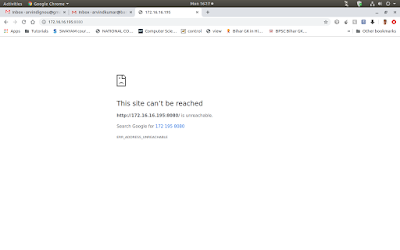
Unable to access Tomcat server running on Linux from another machine.

If you have installed Tomcat server on Linux and it is working on properly on installed machine, but you are unable to access it from other machine. If both machines are connected properly but again you are unable to access this. Then you can try this method.

(If have used this on CentOS running Tomcat 9 server)

It might be problem of firewall, so please use this command-
(I suppose your Tomcat server is using port 8080, if it uses another then use that port number in command)

sudo firewall-cmd --zone=public --add-port=8080/tcp --permanent

sudo firewall-cmd --reload


Thursday, 27 September 2018

Run your first Jython page on Apache Tomcat Server

What is Jython? 
Jython is a Java implementation of Python that combines expressive power with clarity. Jython is freely available for both commercial and non-commercial use and is distributed with source code. Jython is complementary to Java and is especially suited for the following tasks:
  • Embedded scripting - Java programmers can add the Jython libraries to their system to allow end users to write simple or complicated scripts that add functionality to the application.
  • Interactive experimentation - Jython provides an interactive interpreter that can be used to interact with Java packages or with running Java applications. This allows programmers to experiment and debug any Java system using Jython.
  • Rapid application development - Python programs are typically 2-10X shorter than the equivalent Java program. This translates directly to increased programmer productivity. The seamless interaction between Python and Java allows developers to freely mix the two languages both during development and in shipping products.
                                               As described at https://wiki.python.org/jython.

Jython is the best choice if you have already developed applications in Java. However many developer/programmer feel that it is slower than Java because it is interpreted and consume more resources and many other issues, but I don't want to discuss it here.

Let see how we can run Jython on Tomcat server.

Note :- I have used Windows Server 2016, Java SE 10.0.2 and Apache Tomcat 9.

Pre-requisite :- 
  • Download Java from here.
  • Download Jython from here.
  • Download Apache Tomcat from here
After downloading these three install it. You can install Java just double clicking on it as normal software installation in Windows.


After installing Java set JAVA_HOME, PATH and CLASSPATH environment variables in your system for running Java, Jython and Servlets.
For setting environment variable, go to This PC/My Computer on your desktop, right click and then go to Properties 


Click on Advanced system settings


Then click on Advanced tab and then Environment Variables


Click on New button. In Variable name input field enter variable name JAVA_HOME and
variable value C:\Program Files\Java\jdk-10.0.2; (path of your jdk home directory) (After Java Installation)

Again click on New and put the variable name CLASSPATH and value will be  like C:\Program Files\Apache Software Foundation\Tomcat 9.0\lib\servlet-api.jar; for running Servlet. (After Tomcat Installation to test of running servlet)

Not required for running Jython on web, skip this:- [You should also add java and jython (after installation of Jython) path for running java command from anywhere. To do this click on Path variable then click on Edit button then click on New and add just put C:\Program Files\Java\jdk-10.0.2\bin for running Java and for C:\jython_2.2.1 (path of your jython home)]

You can see all values after setting this the screenshot below.


After finishing all Java related settings, now install Jython. After downloading Jython you can see that it is a jar file, so go to Download folder where you have downloaded it using command prompt.
And run command

java -jar jython_installer-2.2.1.jar

Jython installation GUI will open and just install it.


After installation of Jython, install Apache Tomcat and check it by typing http://localhost:8080/ in any of your favorite browser. If you see page like given below, then it is working.


Now you have done all setup for your first Jython application.

Create a directory myfirstjython in webapps  directory. Also create WEB-INF directory and in WEB-INF create a directory classes and lib and a xml file web.xml. So, you WEB-INF directory will look like -


To test that our every set up is working properly, we will run a Servlet on this server.

So write your servlet like-


import java.io.*;
import javax.servlet.*;
import javax.servlet.http.*;

public class MyFirstServlet extends HttpServlet {
public void doPost (HttpServletRequest request,
   HttpServletResponse response)
throws ServletException, IOException {
response.setContentType ("text/html");
PrintWriter toClient = response.getWriter();
toClient.println ("<html><head><title>My First Servlet</title>" +
  "<body><h2>My First Servlet</h2></body></html>");
}
}


compile it on command prompt by running

javac MyFirstServlet.jar

If there is no error. Open web.xml file and deploy here your Servlet by editing this file as -


<?xml version="1.0" encoding="UTF-8"?>
<web-app xmlns="http://xmlns.jcp.org/xml/ns/javaee"
  xmlns:xsi="http://www.w3.org/2001/XMLSchema-instance"
  xsi:schemaLocation="http://xmlns.jcp.org/xml/ns/javaee
                      http://xmlns.jcp.org/xml/ns/javaee/web-app_4_0.xsd"
  version="4.0"
  metadata-complete="true">
   <servlet>
<servlet-name>MyFirstServlet</servlet-name>
<servlet-class>MyFirstServlet</servlet-class>
</servlet>

<servlet-mapping>
<servlet-name>MyFirstServlet</servlet-name>
<url-pattern>/MyFirstServlet</url-pattern>
</servlet-mapping>

</web-app>

Restart your Tomcat Server and then run Servlet on browser by typing-

http://localhost:8080/myfirstjython/MyFirstServlet

 Now after running Servlet, You are ready to run your first Jython program on web.

So, first write your Jython program to run on web. Here is a Jython program that is equivalant to above Servlet -

from javax.servlet.http import HttpServlet

class MyFirstJythonServlet (HttpServlet):
def doGet(self,request,response):
self.doPost (request,response)

def doPost(self,request,response):
toClient = response.getWriter()
response.setContentType ("text/html")
toClient.println ("<html><head><title>This is my first Jython.</title>" +
  "<body><h1><center>This is my first Jython.<center></h1></body></html>")


And save this file to your web root directory.

Now in web.xml (projectfolder/WEB-INF/web.xml) do the following entry.

 <servlet-name>PyServlet</servlet-name>
  <servlet-class>org.python.util.PyServlet</servlet-class>
  <load-on-startup>1</load-on-startup>
</servlet>

<servlet-mapping>
<servlet-name>PyServlet</servlet-name>
<url-pattern>*.py</url-pattern>
</servlet-mapping>

If you change web.xml file, you will require to restart tomcat server every time.
Now restart your Tomcat Server and open any browser and type -

Servlet requires every time to compile after every change in file, while Python does not require.
 
http://localhost:8080/jythondemo/MyFirstJythonServlet.py

If all is right, output will be -


The complete web.xml file is -

 <?xml version="1.0" encoding="UTF-8"?>
<!--
 Licensed to the Apache Software Foundation (ASF) under one or more
  contributor license agreements.  See the NOTICE file distributed with
  this work for additional information regarding copyright ownership.
  The ASF licenses this file to You under the Apache License, Version 2.0
  (the "License"); you may not use this file except in compliance with
  the License.  You may obtain a copy of the License at

      http://www.apache.org/licenses/LICENSE-2.0

  Unless required by applicable law or agreed to in writing, software
  distributed under the License is distributed on an "AS IS" BASIS,
  WITHOUT WARRANTIES OR CONDITIONS OF ANY KIND, either express or implied.
  See the License for the specific language governing permissions and
  limitations under the License.
-->
<web-app xmlns="http://xmlns.jcp.org/xml/ns/javaee"
  xmlns:xsi="http://www.w3.org/2001/XMLSchema-instance"
  xsi:schemaLocation="http://xmlns.jcp.org/xml/ns/javaee
                      http://xmlns.jcp.org/xml/ns/javaee/web-app_4_0.xsd"
  version="4.0"
  metadata-complete="true">

  <display-name>Welcome to Tomcat</display-name>
  <description>
     Welcome to Tomcat
  </description>
  
  <servlet>
<servlet-name>MyFirstServlet</servlet-name>
<servlet-class>MyFirstServlet</servlet-class>
</servlet>
<servlet>
  <servlet-name>PyServlet</servlet-name>
  <servlet-class>org.python.util.PyServlet</servlet-class>
  <load-on-startup>1</load-on-startup>
</servlet>


<servlet-mapping>
<servlet-name>MyFirstServlet</servlet-name>
<url-pattern>/MyFirstServlet</url-pattern>
</servlet-mapping>
<servlet-mapping>
<servlet-name>PyServlet</servlet-name>
<url-pattern>*.py</url-pattern>
</servlet-mapping>

</web-app>
Monday, 18 June 2018

Run your JSP page as Servlet.

Developing JSP page is easier than Servlet. But Servlet has some benefit over JSP. So if we want to run Servlet by developing our page in JSP then we can do it very easily. Although we know that all JSP page is first converted into Servlet and then run. But it makes JSP slower than Servlet. Since Servlet is written in Java while JSP is written in HTML, so it becomes difficult to design in Servlet. Another headache with Servlet that it requires compilation after every changes in code.

Servlets are best suited for large data processing and manipulation. It can also be best suited where you don't want reveal your file name without using any platform.

So if we want develop our page in JSP because of easiness in design, custom tags for calling Beans and use of JavaScript and run it as Servlet because of speed and processing then we can do it in following way:-

I assume that you have good idea of running Servlet on Apache Tomcat Server.

Create your JSP page/project on any of your favourite IDE with your desired design and save it to your project root directory. Now run this page on your server. If it is OK then do the following-

1. Go to Tomcat home folder ------> Work --------> Catalina ----------> localhost

Here you will see your project folder. Inside this folder you will find org folder.
In org folder, there is another folder apache and then jsp folder. In this jsp folder you will see the all Servlet  with the name of your JSP page you have created in your project. These Servlets are created when you run your JSP page on browser (as you know that all JSP are first converted into Servlet before run on browser).

2. Copy this folder (org) to your project/WEB-INF/classes location.

Now in your web.xml, do the Servlet configuration like this.

<servlet>
<servlet-name>sm</servlet-name>
      <servlet-class>org.apache.jsp.home1_jsp</servlet-class>
</servlet>

<servlet-mapping>
        <servlet-name>sm</servlet-name>
        <url-pattern>/sm.arv</url-pattern>
 </servlet-mapping>

If your server is capable of running Servlet, it will also run.

Like this you can convert your all pages/project in Servlet.

Advantages:-

This kind of work can also hide your business logic of your coding from others when you have to distribute your project or share with others.

Also you can design your page in JSP and run as Servlet and you don't need to compile it everytime (for compilation just run JSP page automatically it will be compiled).

You can also hide your file extension (.htm, .html, .jsp).


Monday, 5 September 2016

Automatic startup of Apache Tomcat server in ubuntu on system startup

Apache tomcat server is used to run JSP/Servlet applications. When we install tomcat in Ubuntu/Linux it does not start automatically on system startup. We have to start it manually after system startup. In windows machine it is very simple to start Tomcat on system startup. We can just configure the tomcat service to automatic and it starts on system startup, But when we use tomcat in Ubuntu/Linux, it becomes sometime complex to start tomcat in system startup.

Some people suggest write to shell script to start tomcat, writing shell script is again complex. I have applied many methods to start tomcat in Ubuntu automatically, but I found this method is very simple to start Tomcat in Ubuntu.

Go to rc.local file in etc in root folder and open it with root privileges. Write the startup.sh path in this file and save.

sleep 10
/home/arvind/apache-tomcat-8.0.32/bin/startup.sh


Change image source dynamically on hyperlink

 Changing image source dynamically using JQuery. Here in this example I have created there hyperlink and stored all images in the same folde...